

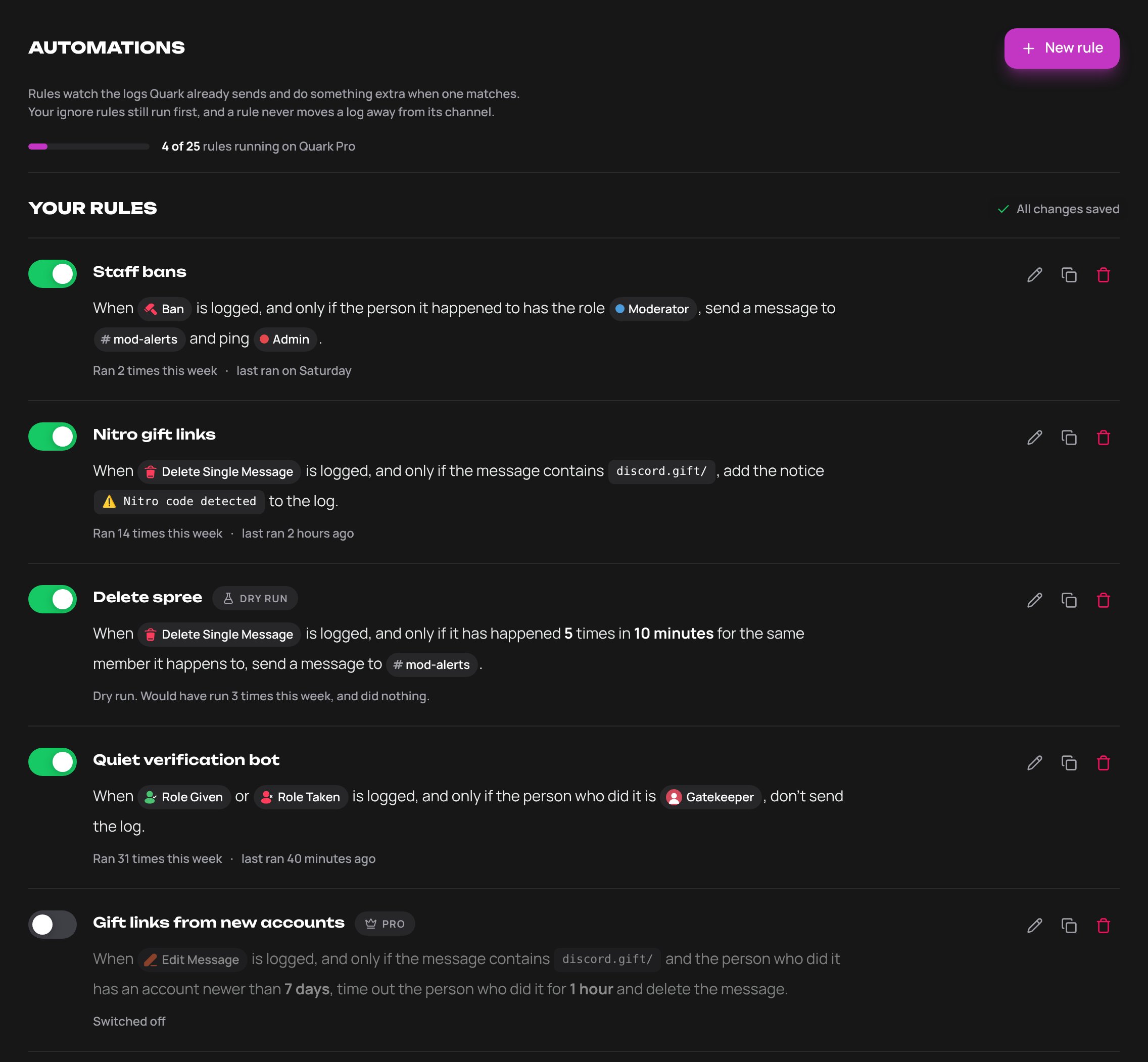
Create a rule
1
Open Automations and press New rule
Choose Start from scratch, or one of the ideas under Or start from an idea. An idea opens with its channel, role or member left blank for you to fill in. See starters.
2
Fill in the sentence
A rule is one sentence in three parts: When this is logged, And only if something is true, Then do this. Press any highlighted part to change it.
3
Check what it does
The panel beside the rule reads it back In plain English, shows What it does on a sample log, and has a Try it button. For a first day, switch Dry run on.
4
Press Save rule
The rule starts running straight away. Use the switch on its row to turn it off.
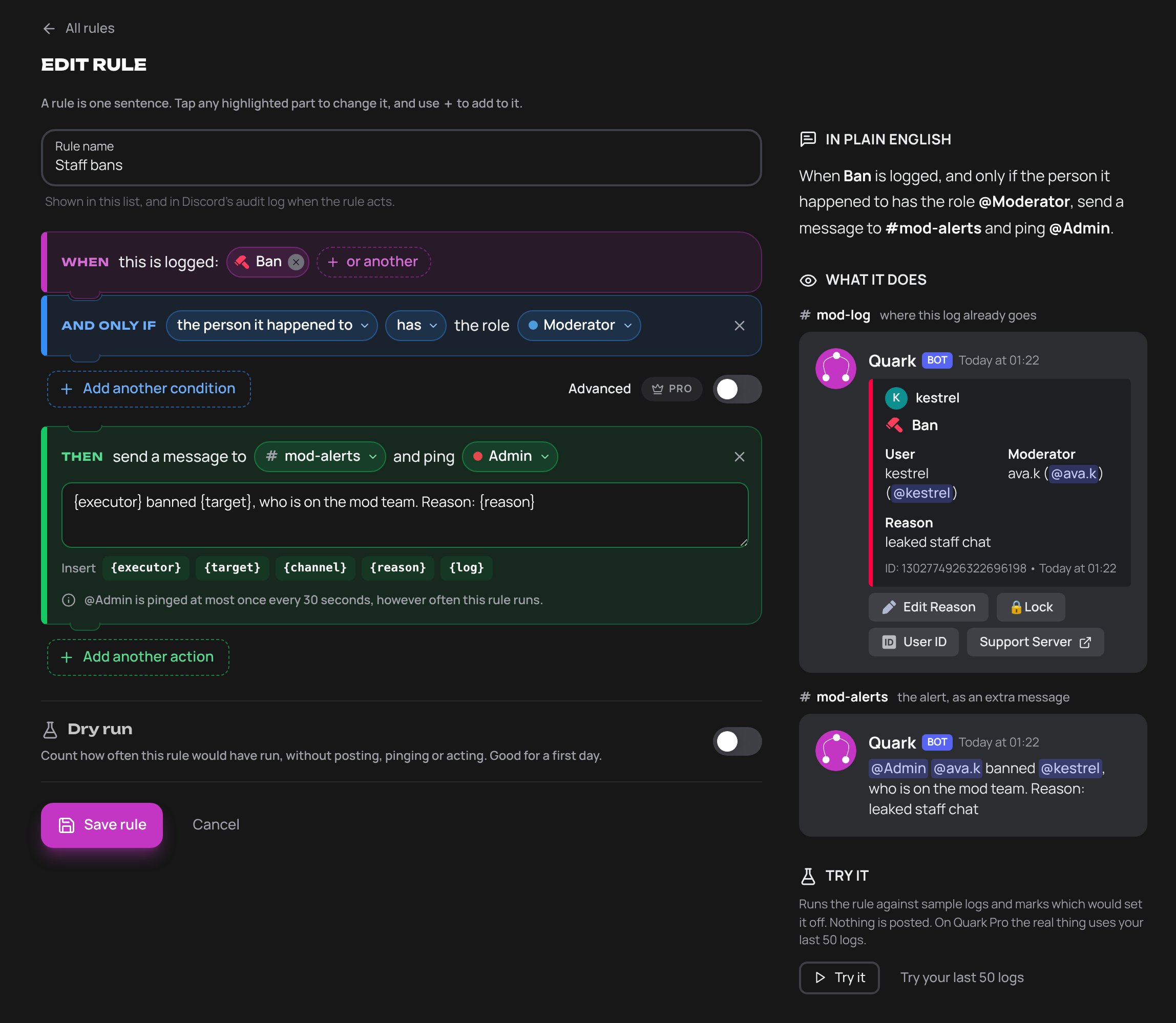
What a rule is made of
When
The logs the rule watches: any log type, or Anything in a whole category. A rule can watch up to 10. It can also be set off by something Quark does not log: see a message is sent, a reaction is added. A rule cannot watch Rule Action, Multiple Voice Channel Events, Multiple Reactions Removed or Multiple Thread Member Events. When voice events, reaction removals or thread joins and leaves are bundled into one log, each event still runs the rules that watch its own log type. An event a rule holds back is left out of the bundle. A notice is only shown on an event that is sent as a log of its own.A message is sent, a reaction is added
Two triggers are listed first in the When menu, under Not logged:
Quark posts no log for either. They are things a rule can act on, not logs.
- They are named on their own. No Anything in category includes them, so a rule on all of Messages does not start running on every message.
- Quark’s own messages and reactions never set them off, and neither does anything sent through a webhook, which is how every log is posted. Messages Discord posts itself, such as a join or a boost notice, do not count as sent. A reaction on one of Quark’s messages or on a webhook message does not set off Reaction Added.
- Your ignore rules and log channels play no part: there is no log to leave out or send.
- The person who did it is the one who sent the message or added the reaction. Discord says who that is, so it is never a guess. There is nobody it happened to, so a rule that only watches these two cannot ask about or act on “the person it happened to”.
- With no log, a rule on either cannot add a notice, hold a log back, change a log’s colour or send a copy of a log. Use an alert or forward the message instead.
- The message is still there, so a rule can delete, pin, react to, reply to or forward it, and set slowmode in its channel.
- On Reaction Added, the name is the emoji: 🚩 itself, or the name of one of your server’s own emoji. The number is how many of that emoji the message has, this reaction included. A starboard is “the number of reactions is at least 5”. If Quark could not read the message, the number is not known, and a condition on it is not met.
- On Reaction Added, a rule alerts or forwards about the same message once. A starboard that alerts at 5 stars does not alert again at 6. The rule’s other steps, such as a reaction or a timeout, are not held back by this.
- Try your last 50 logs has nothing to try a rule on these against, because Quark keeps no log of them. Try it works.
A tag is sent, a button is pressed
Two more triggers under Not logged are about tags:- The person who did it is whoever sent the tag or pressed the button. The person it happened to is the person the tag was sent to with
user:. On Tag Sent, the rule runs once for each person the tag was sent to, up to 5. A tag sent to nobody has nobody it happened to. - The name is the tag’s name. On Tag Button Pressed, the message is the button’s label.
- Like Message Sent and Reaction Added, these are not logs: ignore rules and log channels play no part, and a rule on them cannot add a notice, hold a log back, change a log’s colour or send a copy. The press itself is still recorded as a Rule Action log.
- A tag’s Automations section lists the rules about it, and New automation there starts a rule with the tag already chosen.
And only if
Up to 8 conditions. With none, the rule runs on every log it watches. Each condition after the first is joined to the one above it by And or Or. Press the word to change it.- And: this one and the one above both have to be true.
- Or: this one starts another set of conditions. Every condition in a set has to be true, and any one set being true is enough.
- A condition about something the log does not say is not met. Its opposite is not met either. A rule about “the person who did it” does not run on a log that names nobody. They did it to themselves needs a log that names both people, No reason was given needs one of the five logs above, and The message is new, or old needs a log about one message. The builder warns when none of the logs a rule watches can answer a condition.
- It keeps happening counts only the logs the rule’s other conditions are true for. With “the message contains a link” beside it, 3 times means 3 messages with a link, not 3 messages of any kind. A log one of the other conditions cannot be answered for, such as a deleted message Quark never saw the text of, is not counted. A rule can have two counts. A rule that counts cannot also add a notice, hold the log back or change its colour.
- It’s a certain time of day is read on the clock of the time zone you choose, daylight saving included. The window starts at the first time and stops just before the second.
- A message’s age is measured from when it was posted to when the log is made.
Text a rule can read
The message says something and It’s on a list of words read one of these. The menu only offers what at least one of the logs the rule watches has.Lists of words
A list block checks some text against a list: your own, or one of Quark’s.- Your own words: type a word or phrase and press Enter. Pasting several at once splits them. A list holds up to 200, each up to 100 characters.
- One of Quark’s lists: choose one in the menu. The builder shows what it has, roughly how many entries, and where it comes from.
- Case is ignored, and so are the different ways of writing the same letter, such as full-width letters, and extra spaces.
- Words are matched whole:
assis not found in “class”. A phrase such asbad wordis found in “a BAD, word”. - An entry with no letters or digits, such as an emoji or
:), is looked for anywhere in the text. - An entry that is a web address, such as
bit.lyordiscord.com/invite, is matched against the web addresses in the text, including the ones it is part of:bit.lycatchesgo.bit.ly/x. - An entry written as a file ending, such as
.zip, matches the end of a file name..imgdoes not catchIMG_1234.jpg, andarchive.tar.gzends in.gz. Use it with the names of the files.
Forums and their posts
A rule about a forum or media channel matches the logs from its posts. Every log from a post names the post, not the forum, so It happened in a certain channel with a forum, orchannel == #forum in Advanced, is true of a message deleted, edited, pinned or reacted to in any of its posts, and of a post created, changed, closed or deleted. Outside the forum, or channel != #forum, is false for those logs.
- It applies to forum and media channels only. A rule about a text channel does not match logs from threads in it.
- If Quark cannot find out which forum a post is in when the log is made, the rule compares the post alone.
- Try your last 50 logs matches a forum’s posts the same way.
- When a log names a moderator only because a bot put their ID at the start of its audit log reason, a rule treats the bot as the person who did it. Conditions, counts and
{executor}all read the bot. Wick, YAGPDB, Sapphire, ProBot and Quark’s own commands are the exception. See your own bot.
Then
Up to 4 actions, carried out in order.
Every action from Time someone out down, apart from forwarding, replying and reacting, is a moderation action. They are on every plan, the free one included, and the safety rules apply to them on every plan. They are grouped in the menu under The message, People, Voice and Channels.
- The message. Forward, Reply, React, Delete and Pin act on the message the log is about, so they are only offered on a rule that watches nothing but message edits, pins, Message Sent and Reaction Added, where the message still exists.
- People. Each acts on the person who did it or the person it happened to, whichever you choose.
- Voice. Moving, disconnecting, muting and deafening are only offered when at least one log the rule watches has someone in voice, such as Joined Channel. They are skipped, at no cost, for someone who is not in voice when the rule acts.
- Channels. Each changes a channel you choose, or this log’s channel. This log’s channel is only offered when every log the rule watches happens in a channel of that kind: a voice channel for its status, a text channel for its topic, and not a thread for a lock, a new name or a topic. A slowmode, name or topic the channel already has is left alone, and costs nothing.
- A channel’s name and topic can each be changed by rules once every 5 minutes, because Discord allows only two renames of a channel in 10 minutes.
- An alert or a forward can’t be sent to a category, a forum, a media channel or a directory: those take no messages of their own.
- An action the logs a rule watches can’t take is not offered. If a rule already has one, the block says why and the rule can’t be saved until it is changed.
Locking a channel
Locking takes these away from @everyone in the channel: Send Messages, Send Messages in Threads, creating threads, and Add Reactions. A voice or stage channel also loses Connect and Speak. The channel can still be read. Unlocking takes those denials off again, and the channel goes back to following the server’s roles. Nothing else on the channel’s permissions is changed. Categories and threads can’t be locked.Text from the log
An alert, a reply or a direct message, and an alert embed’s title, can include these. Quark fills them in from the log.
The text of an action can’t contain hidden characters. A rule that has them can’t be saved.
{message} and {content} are only offered when every log the rule watches is about one message that is still there: message edits, pins, Message Sent and Reaction Added. A rule that uses either shows the message to whoever reads the alert, so it is held to the same rules as a forward: see who can view and edit rules and who a rule acts for.
Alerts as embeds
Switch on Send as an embed under Tell a channel to post the alert as an embed.- The alert’s text is the embed’s text.
- The embed’s title is optional, up to 200 characters as you write it, on one line. It can use the tokens above.
- The colour is a hex code such as
#C336C3, or left empty for Discord’s own. - The role it pings is mentioned outside the embed, where a ping works.
Copies
A copy is the log as it was posted: its text or embeds, and the server’s standard buttons (User ID, Support Server). It is posted by Quark itself, and pings nobody.- A copy never carries the log’s files, and leaves out any picture that was one of them, such as a new emoji or an old avatar.
- A copy has none of the log’s own buttons, such as Edit Reason and Lock on a ban or Ban on a join. Those act on the log or on a member, and stay in your log channel. A copy has no action buttons either.
- A rule can send copies to up to 3 channels. One log is copied to at most 3 channels, whatever the rules say, and to each channel once.
- A copy is never posted in the log’s own channel: the channel the log went to, or the one it was held back from.
- A log that was sent to your Age-restricted channel is only copied to a channel that is age-restricted too.
- With Don’t send this log in the same rule, the log goes to the copy’s channel instead of your log channel. That is how a rule sends some logs somewhere else.
- When one event produces two logs, such as a role given and another taken in one change, each log is copied. Anything else the rule does, it does once for the event.
- When voice events or reaction removals are bundled into one log, the events in the bundle are not copied.
- Saving a rule that sends a copy, or switching one on, also needs View logs under dashboard access. See who can view and edit rules.
- A copy is the log. To post the message itself, forward the message.
Forwarding the message
Forward the message uses Discord’s own forward: the message as it was, with its pictures and files, and a link back to it, posted by Quark in the channel you choose. Nobody in it is pinged.- It is only offered when the message is still there: on message edits, pins, Message Sent and Reaction Added.
- The channel has to take messages. A category, a forum, a media channel or a directory cannot be chosen.
- A message in an age-restricted channel is only forwarded to a channel that is age-restricted too. If Quark cannot tell whether either channel is, the message is not forwarded.
- A forward counts as an alert towards the hourly limits.
- A forward shows the message to whoever reads that channel. Saving the rule needs View logs, and the person who last changed the rule must be able to read the channel the message came from each time it runs. See who can view and edit rules.
- If Quark cannot post in the channel, the forward is skipped and the rule’s row says so.
Starters
Each idea opens in the builder with its blanks left for you to fill in. Keep logs quiet
Get told
Step in
- These starters work on every plan, the free one included. To only be told, remove the moderation action under Then before saving.
- “Roles members give themselves” are role changes where Discord’s audit log names the member as the one who made the change. A role a bot hands out when someone reacts or presses a button was given by the bot. Use the verification bot starter for those.
- A ghost ping, for the starter, is a message that mentions a member or a role and that its author deletes within 10 seconds of posting it. It does not catch @everyone or @here.
- The starter for someone with a role leaving watches one role. To watch two, such as Staff and Booster, make a second rule for the other role, or use an advanced condition.
Dry run and Try it
- Dry run is a switch on the rule. A rule in dry run counts how often it would have run and does nothing else: no post, no ping, no action. Its row shows the count for the week.
- Try it runs the rule you are editing against sample logs and marks which would set it off. Nothing is posted.
- Try your last 50 logs, on Quark Pro, does the same against the last 50 logs of the types the rule watches. Someone with dashboard access needs View logs and View log history to use it.
What each plan gets
A rule that is switched off still counts towards the number.
When a plan ends, nothing is deleted. Rules with an advanced condition are Parked off Quark Pro, and so are rules beyond the plan’s number, counted in the order they are listed. On the free plan a rule that changes a log’s colour is parked as well. Parked rules run again when the server has the plan.
Off Quark Pro, up to 3 rules with an advanced condition that are in dry run are previews instead of parked. A preview counts how often it would have run, like any rule in dry run, and does not use up one of the plan’s rules.
Who can view and edit rules
Being able to edit rules is not enough for a moderation action. The person saving the rule also needs the matching permission in Discord, and Quark needs its own.
- The dashboard’s messages call Timeout Members “Moderate Members”. It is the same permission.
- The permissions that act in a channel are read in that channel: deleting or pinning a message in the message’s channel, and the channel actions in the channel they change. A channel that takes a permission away from your roles stops you saving a rule that uses it there.
- The server owner can save any rule. Administrator covers the permissions, but not the rule about your highest role.
- Only the server owner can save a rule that gives a role with a moderation or management permission, or switch it on, rename it or take it out of dry run. Those permissions are Administrator, Manage Server, Manage Channels, Manage Roles, Manage Messages, Manage Webhooks, Manage Expressions, Manage Threads, Kick Members, Ban Members and Timeout Members. Only the role’s own permissions are read, not what a channel allows it. Anyone who can edit rules can still switch such a rule off or put it into dry run, and a rule that takes such a role is not restricted this way.
- Quark asks Discord for your permissions each time you save a rule with a moderation action, switch it on, take it out of dry run or rename it. If Discord does not answer, the change is refused.
- The rule then acts for you. See who a rule acts for.
- If Quark is missing a permission, the step is skipped and the rule’s row says why. See permissions.
Changes that let more logs reach a rule
Some changes make a rule run on logs it did not see before, without the rule itself being touched. On a server with a moderation rule, even one that is switched off, each of these needs the Discord permission for every moderation action the server’s rules take, and a highest role above any role they give or take:- Changing the order of the rules.
- Deleting, switching off, putting into dry run or editing a rule that holds logs back.
- Under Logging: removing an ignore rule, switching a log type or a category on, switching Actions by bots, Actions on bots or PluralKit Compatibility off, giving logs a channel where they had nowhere to go, and setting or clearing the Files channel.
- If one of the server’s rules gives a role with a moderation or management permission, only the server owner can make these changes.
- Changes that leave more out, such as adding an ignore rule or switching a log type off, are never checked. Neither is switching Active Ignore on or off.
- Quark asks Discord for your permissions when you make the change. If Discord does not answer, the change is refused.
- The Logging pages do not say which permission is missing. They say “You don’t have permission to do that.”
- This is checked on the dashboard. The
/loggingand/troubleshootcommands in Discord go by their own permissions.
Who a rule acts for
A rule moderates, forwards and quotes messages on behalf of whoever last changed it: the person who created it, or who last edited it, renamed it, switched it on or off, or put it into or out of dry run. Pressing Save rule with nothing changed does not count, and neither does changing the order. Each time a rule is about to moderate, forward the message, or post{content} or {message}, Quark checks what that person could do themselves in Discord at that moment.
- The server owner passes every check. Administrator covers the permissions, but not the two rows about the highest role.
- The forward and quote check stops a rule copying messages out of a channel its author cannot read into one they, or others, can. A timeout does not stop it, because a member who is timed out can still read.
- For the moderation rows, the permission has to come from one of the person’s own roles. One that only @everyone has does not count. For reading a channel, @everyone’s View Channel and Read Message History do count.
- A message from an age-restricted channel is only forwarded or quoted into a channel that is age-restricted too, and is never quoted in a direct message. If Quark cannot tell whether a channel is age-restricted, the step is skipped.
- When a check fails, that step is skipped and uses nothing from the hourly limits. Alerts, notices and held-back logs are not affected.
If a rule stops acting
A rule stops moderating when the person who last changed it leaves the server or loses the permission, and for as long as they are timed out. The rule’s row says that Quark, or the person who last changed the rule, is missing a permission. The Rule Action log in your server says which of the two it is. A rule that forwards or quotes messages skips that step in a channel where the person who last changed it cannot view the channel or read its message history. The row says the same, and the Rule Action log says the rule “could not act in” that channel because “the person who last changed the rule does not have the Discord permission it needs in that channel”. Its other steps still run. To fix it, someone who holds the permission edits the rule, or switches it off and on. A timeout also ends on its own. The rule then acts for them. The dashboard does not show who last changed a rule. The Automation Created, Automation Updated and Automation Deleted logs do. A rule that deletes messages shows the same thing after it is set off in a channel where the person who last changed it cannot delete messages. It goes on deleting in the other channels.Safety rules
Who a rule never acts on. A timeout, kick, ban, removed timeout, role change, nickname change or message delete is never carried out on:- the server owner
- Quark itself
- a member whose highest role is level with or above Quark’s highest role
- someone who is no longer in the server
- On these logs Quark cannot be certain who did it, so a rule that acts on the person who did it cannot be saved: deleted messages, bulk deletes, attachments and polls, Moved, Disconnected, server mutes and deafens, pins, and removed reactions. For a removed reaction, Discord says whose reaction it was and not who removed it. For the others, Quark matches the event to the audit log and can be wrong.
- When the moderator was found through another bot, as in “using Sapphire”, the step is skipped.
- Moderation is counted in members, not actions. Everything one rule does to the same member in an hour counts once.
- One rule acts on the same member at most 20 times an hour.
- A member that two rules act on counts once for each rule towards the server’s 30.
- Each member a rule moderates also uses one of the alerts in the first column. Moderation does not stop when the alerts run out.
- A channel action counts once for each channel, and pinning once for each message, in the second column.
- A copy of a log, a forward, a reply and a reaction count as alerts. Notices, colours and held-back logs are not counted, and neither is an action that was skipped.
- Past a limit, actions are skipped until the next hour. The rule’s row says so.
- Sent only to people who are in the server, and never to a bot.
- Not sent to the person a User Left, Kick, Ban or Bot Removed log is about. They have left.
- One rule messages one member at most once every 10 minutes.
- Quark adds a last line that the rule cannot remove: “Sent automatically by a rule in” and the server’s name.
- Members with DMs closed do not get the message.
- A rule acts once on each event, however many times Discord reports it.
- What Quark does itself never sets a rule off. A rule that bans does not trigger a rule that watches bans, and a rule that sets a voice channel’s status when a status is set does it once.
- A rule’s timeout never shortens a longer timeout.
- Rules only see logs that pass your ignore rules and have a log channel. A log only goes to another channel when a rule sends a copy there. Message Sent and Reaction Added are not logs, so neither applies to them.
What is logged
- Moderation actions are logged even when the Rule Action log type is switched off. Alerts, forwards, replies, reactions and the other two follow the switch.
- A rule reaching its limit, or failing to act, is logged at most once an hour for each rule and reason.
- Notices, colours, copies and held-back logs do not produce a Rule Action log. A copy that cannot be posted, because Quark cannot post in the channel or the channel is gone, is said on the rule’s row.
Advanced conditions
With Quark Pro, switch Advanced on to write the condition as one expression. It can say things the blocks cannot, such as an either/or inside brackets. Switching Advanced off turns the expression back into blocks when it is simple enough: an expression whose “or”s are only between sets of “and”s becomes blocks joined by Or.- Join with
&&,||,!and brackets. Compare with==,!=,<,<=,>,>=. - Text has
contains,startsWithandmatches. Put text in double quotes. - A list is written
["a", "b"], orlist("profanity-en")for one of Quark’s.inasks whether the text is one of the entries, andcontainsAnywhether it has one as a whole word, as in lists of words. Quark’s lists areprofanity-en,profanity-de,profanity-es,profanity-fr,profanity-pl,profanity-pt,profanity-tr,scam-links,link-shorteners,discord-invitesandrisky-files. - Write a role or member as
@nameand a channel as#name. Test a role within, as in@Staff in executor.roles. count(10m)is how many times the rule’s logs have happened in the window for the same member doing it. Addtargetorchannelto count for those instead, orserverto count for the whole server.timeBetween("22:00", "06:00", "Europe/London")is whether it happened between two times of day. Times are 24-hour, and the zone is an IANA name such asEurope/London,America/New_YorkorUTC.- An expression can be up to 500 characters.